Guide / Work
HelpJob detail
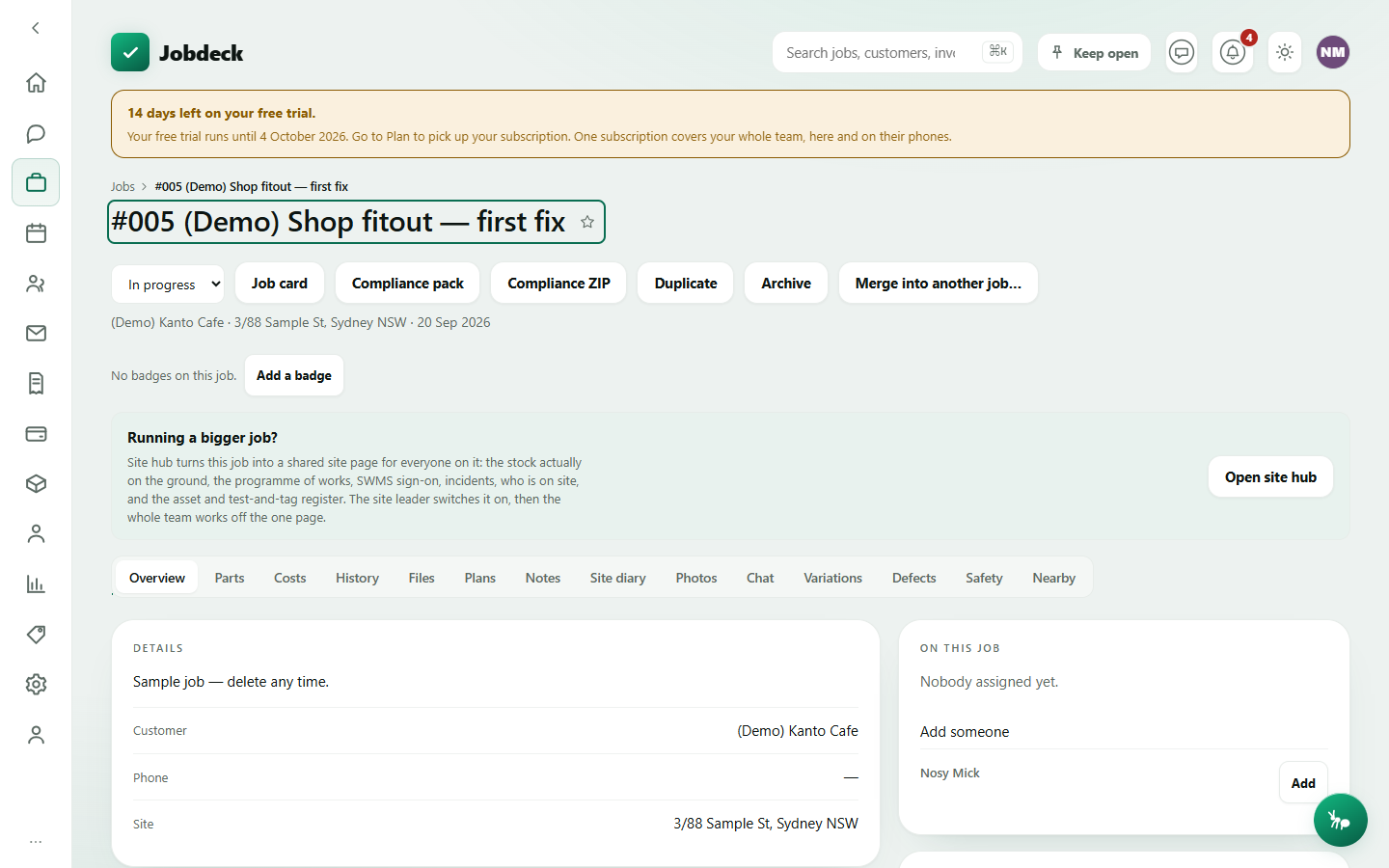
The full record for one job. Everything about it lives behind fourteen tabs, off a header that carries the status, the print and compliance paperwork, and the badges that flag what's special about this job.
Job detail /jobs/:id
- What it's for
- Everything about one job in one place — who's on it, what it costs, what's been said and photographed on site, and every piece of paperwork it needs.
- Controls
- A job status dropdown (Quoted / Scheduled / In progress / Done / Cancelled) sits in the header on every tab, so you never have to go back to Overview just to change it.
- Buttons
- Job card (a one-page print for whoever's doing the job — scope, team, checklist, materials, and space to write in; open to anyone who can open the job, no money on it). Manager only: Compliance pack and Compliance ZIP (team, licences, SWMS, certificates and site photos, as a PDF or a full zipped bundle a head contractor can demand), Duplicate (clones the job, its materials and its checklist into a fresh quoted job), Archive / Unarchive, and Merge into another job… for a genuine duplicate record.
- On the page
- The badges bar (coloured flags set on the job); a Site hub promo for bigger jobs — it turns the job into a shared page for the whole crew, with stock on the ground, the programme of works, SWMS sign-on, incidents and who's on site; then the fourteen tabs below.
- Takes you to
- Invoices (from a progress claim or the invoice draft); the new copy (from Duplicate); Site hub; the customer portal link; the target of a merge.
The fourteen tabs
Overview
The job's own facts, and the manager-only cards that file it properly. Description, customer and site; whether a contract's been received for a commercial job, its response-time target and what that promise is measured against; the customer's completion signature once one's been captured; custom fields and tags. Manager-only: job type, category and stage; referral source; the skill sign-off check for job categories that require one; which parking queue it's sitting in; a due-by date; the assigned team; schedule date and time; the On my way card, which texts the customer you're heading over with an optional ETA and an optional live map that's coarse, self-expiring and never shows your exact address; the customer portal link (a no-login page showing the job's quote, variations, photos and invoices); and a one-tap ask for a Google review once the job's done.
Parts
The billable sub-parts of a commercial job — Level 1, Level 2, the switchboard, the car park — each with its own budget, spend and margin, so the one part losing money doesn't hide inside a job total that nets it off against the rest. If a part has work booked against it with no budget set, the roll-up refuses to show a total rather than reporting a false overspend, and names which part is missing one.
Costs
The whole money side of running the job. Materials (including van stock pulled straight from the price book), supplier bills — with a PAYG-withholding nudge if a bill has no ABN against it, and the option to file it against a registered contractor — and purchase orders. Below that: quoted-versus-used and an estimate-versus-actual budget card; progress and forecast (how far along the job is and what it's on track to finish costing); the progress-claim position for a staged bill; a claim schedule for raising a Security of Payment claim; prepaid hours or dollars; energy certificates (STCs and VEECs) and what the job is really worth with them counted in; and an invoice draft built straight off what's on the job, so you can check every line's origin before you raise it.
History
Everything that happened on the job, in one column — bookings, notes, photos, files, texts, payments and status changes — instead of the six separate tabs and phone-only feeds it used to be spread across. Filter chips are handed to you by the server, so you're never offered a filter (like Payments) for something you're not allowed to see.
Files
Folders of files on the job, with one flag that matters on each: whether the customer can read what's inside. A folder is private unless somebody deliberately shares it, sharing is turned on manager-only and switched off by anyone, and every shared folder says so in words, never just a colour or an icon.
Plans
Take a real distance or area straight off an uploaded plan or site photo — click two points, type the real-world distance once to calibrate, then trace a wall or a room. Every figure on screen came back from the server; this screen never does the geometry itself.
Notes
A running notebook for the job (add one, remove your own, put a follow-up date on one to turn it into a promise that shows up on Follow-ups), plus the job's checklist alongside it — tick items off, add one on the fly, or start from a template. Ticking is always one click; an attached form or asset that still needs doing shows as a warning under the line, but it never blocks the tick.
Site diary
What the crew wrote up from the phone, on site: hours worked, what got done, and photos — read-only here, since it's written from the field.
Photos
Every photo taken on the job's site diary. Select some (or none, for all of them) and build a branded PDF photo report, optionally emailed straight to the customer; if any selected photo couldn't be read from storage, the report says so rather than quietly leaving it out.
Chat
A message thread scoped to this one job — separate from staff Chats, which isn't job-specific.
Variations
Extra or reduced work agreed after the original scope, each with a description and an amount. A variation can be negative — typing "-500" records a $500 credit, not a $500 charge — because a variation is the one place on a job where going backwards is expected.
Defects
The snag list for the job. Raise one with a title, a location and a description, then work it through open → fixed → verified; the verified list is what you hand the customer at completion. Verified defects are hidden by default — tick Show closed to bring them back.
Safety
SWMS (safe work method statements) and safety certificates for the job, each started from a trade template and reviewed and signed on site from the phone.
Nearby
The same dispatch panel as the standalone Nearest team member screen, with this job already picked: who's actually closest right now, other jobs and gear nearby, and any prior work already done at this address. Distances are always straight-line and never an ETA.
Site hub is a separate, bigger surface for a job that needs it. The button under the badges bar turns a job into a shared site page the whole crew works off — stock actually on the ground, the programme of works, SWMS sign-on, incidents, who's on site, and the asset and test-and-tag register. The site leader switches it on; it isn't one of the fourteen tabs above.