Guide / Settings
HelpSettings
The details, rates and preferences that print on your quotes and tax invoices and drive Jobdeck's automations — plus a signposted list of every other setup screen, grouped by the question each one answers.
Settings is manager-only. Two related areas live outside it now: your own account (photo, sign-in security, notifications) is on Profile, and who's on the team with what permissions is on Team. Settings still links out to both, because where a screen is reached from isn't the same question as which area it belongs to.
Business settings /settings manager
- What it's for
- Everything that prints on a document or drives an automation, in one form with one Save button. It's grouped into five collapsible sections — only the first opens by default — so the page you land on isn't thirty fields deep the moment you arrive.
- Business details
- Trading name, legal entity name, ABN, licence number, and your logo (PNG/JPEG, prints on quote and invoice PDFs).
- Payments
- Payment terms, account name, BSB/account/PayID, and a card surcharge percentage. Also the two hourly rates every job-profit figure is built on: your labour cost rate (true cost per hour — wages plus super, workers comp and leave loading, not the bare wage) and your charge-out rate (what you bill), plus a default knock-off time and per-weekday operating hours.
- Automations and rules
- Four things Jobdeck will do without being asked, each off until you switch it on: text a Google review link after a job, chase open quotes by text, chase overdue invoices by email through three escalating stages, cost a delivery onto its job the moment it's received, raise a job automatically when the asset register says something's due, and stock control as a whole.
- Tax and approvals
- Whether you're registered for GST (unregistered businesses get "Invoice" instead of "Tax invoice" headers and no GST shown); a books lock date, past which nothing can be written to an invoice, quote or job (owner-only to move); and whether an invoice needs a second person's approval before it can be sent.
- How your documents look
- Brand colour, a document theme (Classic / Band / Minimal), your printed terms and conditions, and an email signature block.
- Buttons
- Save settings covers all five groups in one write. Below the form: billing details, payment methods, a "remove sample data" action once your Getting Started sample data is no longer wanted, and a Danger Zone.
Danger Zone. Two actions with no undo, kept deliberately quiet and separate from everything above them: delete this business and delete your own account. Each asks you to type a confirming name before it will act.
The rest of the setup
Thirty-six further screens, none of them required — Jobdeck works with every one left alone. They're grouped by the question they answer, closed by default on the real Settings page, so a business that wants none of this can see that in about four seconds.
Workflow
Your own words for the kind of work, where it's up to, and who does it.
- Job stages
- Where a job is up to, in your words — waiting on parts, ready to invoice.
- Job categories
- What kind of work a job is, on two lists you name — and who's only allowed to see one of them.
- Job badges
- Coloured flags on a job that take themselves off when the job moves on.
- Zones and teams
- The areas you work in and the teams you send.
- Skills
- What your people are signed off to do, and which work needs it. Warns when you assign someone who isn't — it never stops you.
- Response targets
- How quickly you've promised to turn up.
- Custom fields
- The extra detail your trade tracks — a meter number, a gate code.
- Job templates
- A job you book over and over, pre-filled — items, checklist, description.
- Checklist templates
- The list of steps that goes onto a job, so nothing gets missed on site.
- Site forms
- The forms your team fills in on site, built from your own questions.
- Trade settings and testing
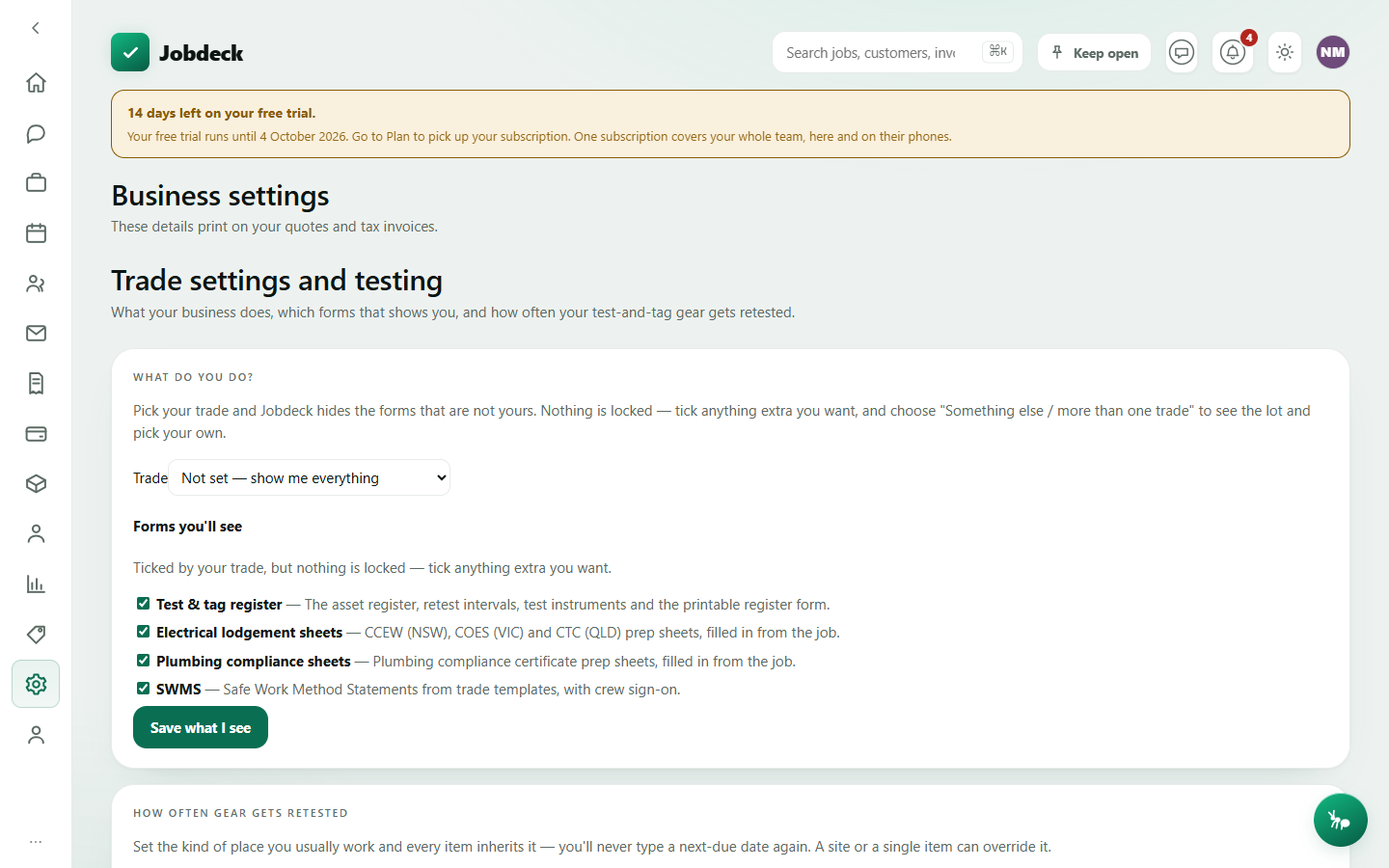
- Which trade you are, which forms you see, and how often gear gets retested.
- Asset types and service levels
- The kinds of gear you look after, and how often each is due.
Pricing and costs
Your services, your plans, your catalogue and who pays what.
- Services and products
- Your services, how long each takes and what it's worth — what an online booking page offers.
- Online booking
- The page a customer books you from, and the hours and services it offers them.
- Memberships
- Service plans a customer holds, and who's about to lapse.
- Price book / Price levels / Line templates
- Your parts-and-labour catalogue, what you charge which customer band, and reusable blocks of quote lines. See the Price book page.
- Catalogue groups / hygiene
- How the price book is filed, plus duplicates, missing costs and dead lines found for you.
- Currency
- What money is shown in. Almost every business leaves this alone.
What your paperwork says and how it looks
The emails and texts Jobdeck sends on your behalf, and the look of the documents that go with them.
- Document templates
- The covering note that goes out with each document, the margins, and the theme.
- Letterheads
- The artwork printed across the top of your documents, and how tall a band it gets.
- Document numbering
- A prefix and leading zeros for your invoice, quote and credit note numbers.
- Job sheet layout
- Which blocks appear on a printed job sheet, and in what order.
- Message templates
- The texts and emails sent automatically — reminders, on-my-way, review requests.
Automations
Rules that act without being asked, and the record of every time they did.
- Automations
- When this happens, do that. Every rule keeps a history you can read.
- Recurring jobs
- Work that comes round again — a quarterly test, an annual service.
- Service reminders
- Nudging a customer when something is due for a look.
- Rule suggestions
- Things Jobdeck has noticed you do by hand and could do for you.
- Photo stamps
- What gets printed onto a site photo — the date, the job, where it was taken.
Security, records and getting data in or out
Who can get in, what's been done, and how to move data.
- Integrations /integrations
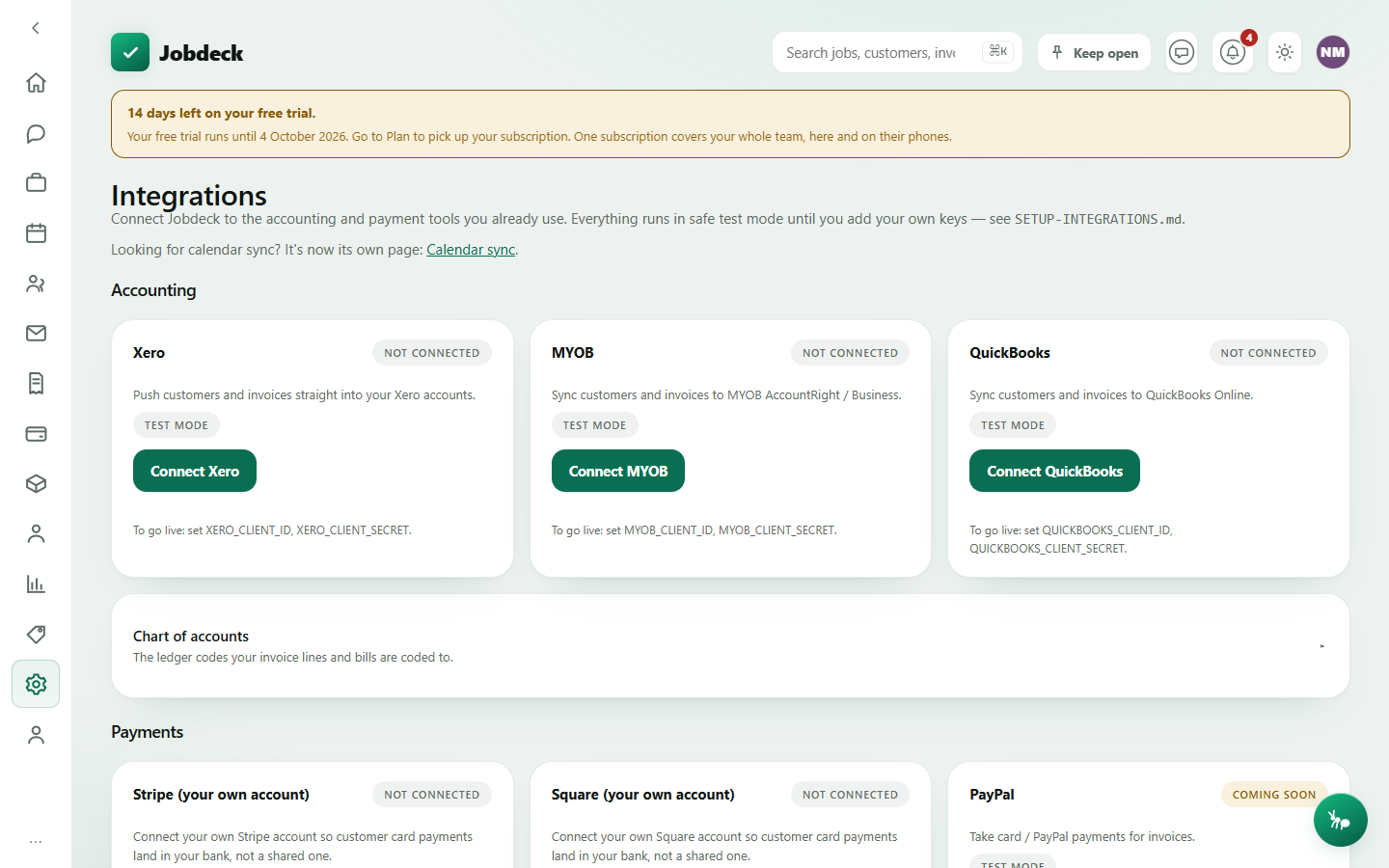
- Connect Jobdeck to accounting and payment software you already run. Accounting: Xero (live), MYOB and QuickBooks (built, dormant until connected) — connect, then push contacts and invoices with Sync now. Payments: your own Stripe Connect or Square Connect account, so a customer's card payment lands straight in your bank — PayPal is scaffolded, not live yet. Every card shows a Connected/Live/Test mode pill.
- Custom roles
- Name your own permission preset when none of the four built-in tiers quite fits.
- Reported messages /reported-messages manager
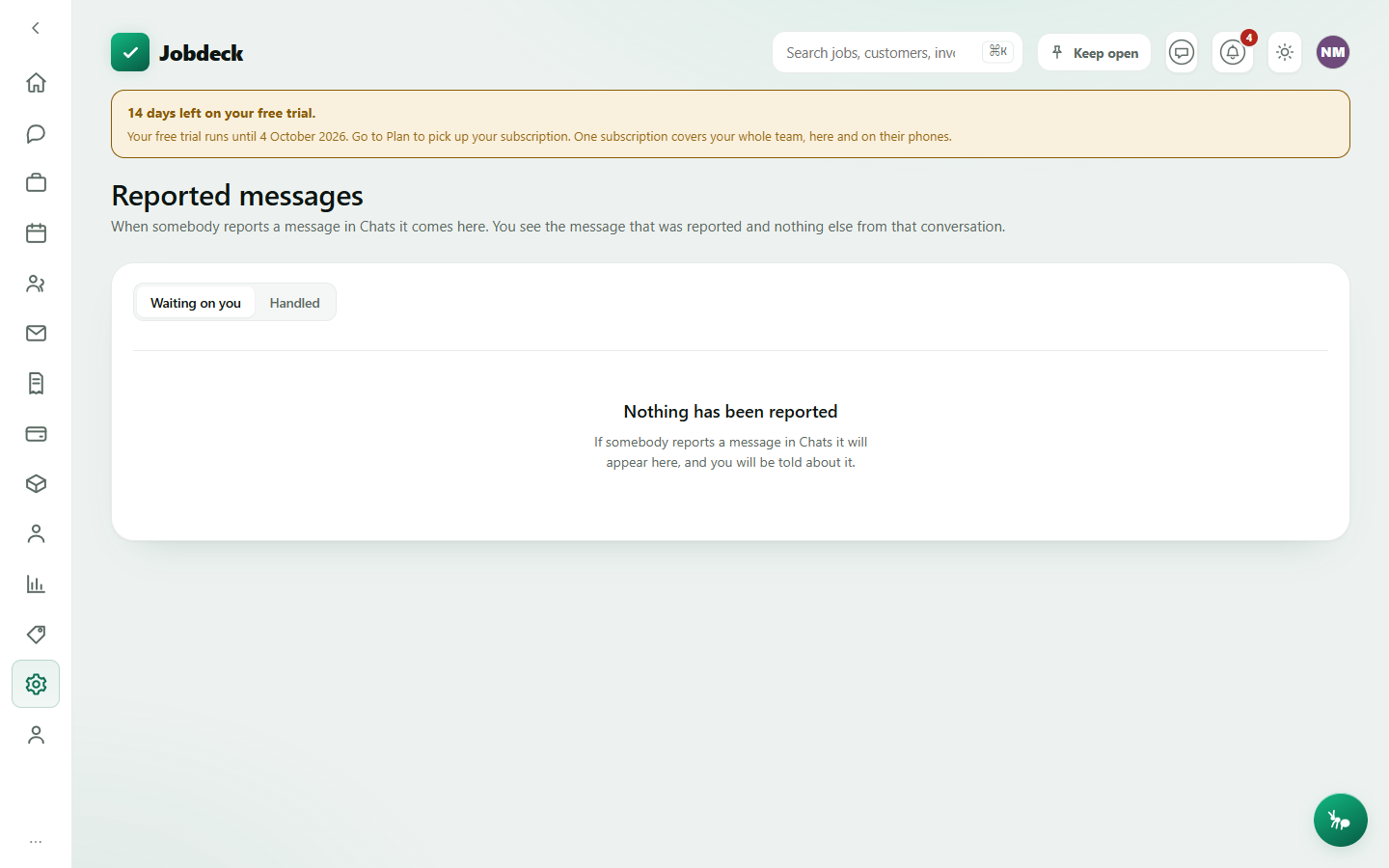
- The one place an owner or admin sees a Chats message somebody reported — the message, who sent it, who reported it and why. Never the rest of the conversation, and the person it's about doesn't see it. Open/Handled tabs; Mark handled / Put back on the list.
- Single sign-on
- Signing in through your company Google or Microsoft account instead of a password.
- Phone access
- Which of your team can use the phone app, and on how many devices.
- Company group
- Running more than one trading company off one login.
- API and webhooks
- Keys for plugging something else in. Most businesses never need this.
- Activity log and backups
- Who did what, and your own copy of everything as one ZIP.
- Import data
- Bringing customers, jobs or a price list in from a spreadsheet.
- Duplicates
- Two customers who are the same customer, found and merged.
- Switch from another system
- Bring a whole business across from simPRO or ServiceM8.
- Calendar sync
- Sync your own calendar with your Jobdeck schedule.
- Your plan and billing
- What you're on, what it costs, and your invoices from us. If a subscription lapses, reads still work — every job, quote, invoice and report stays open, and the data export keeps working. Only adding and changing is refused, and the automations above pause with it.
Your own account — sign-in security, notifications, your card — is covered on Profile, and who's on the team is on Team.