Guide / Team
HelpTeam
Invite people onto the business, set what each of them can do, and the nine registers filed under Team: timesheets, approvals, GPS locations, training, employment agreements, licences, toolbox talks and incidents.
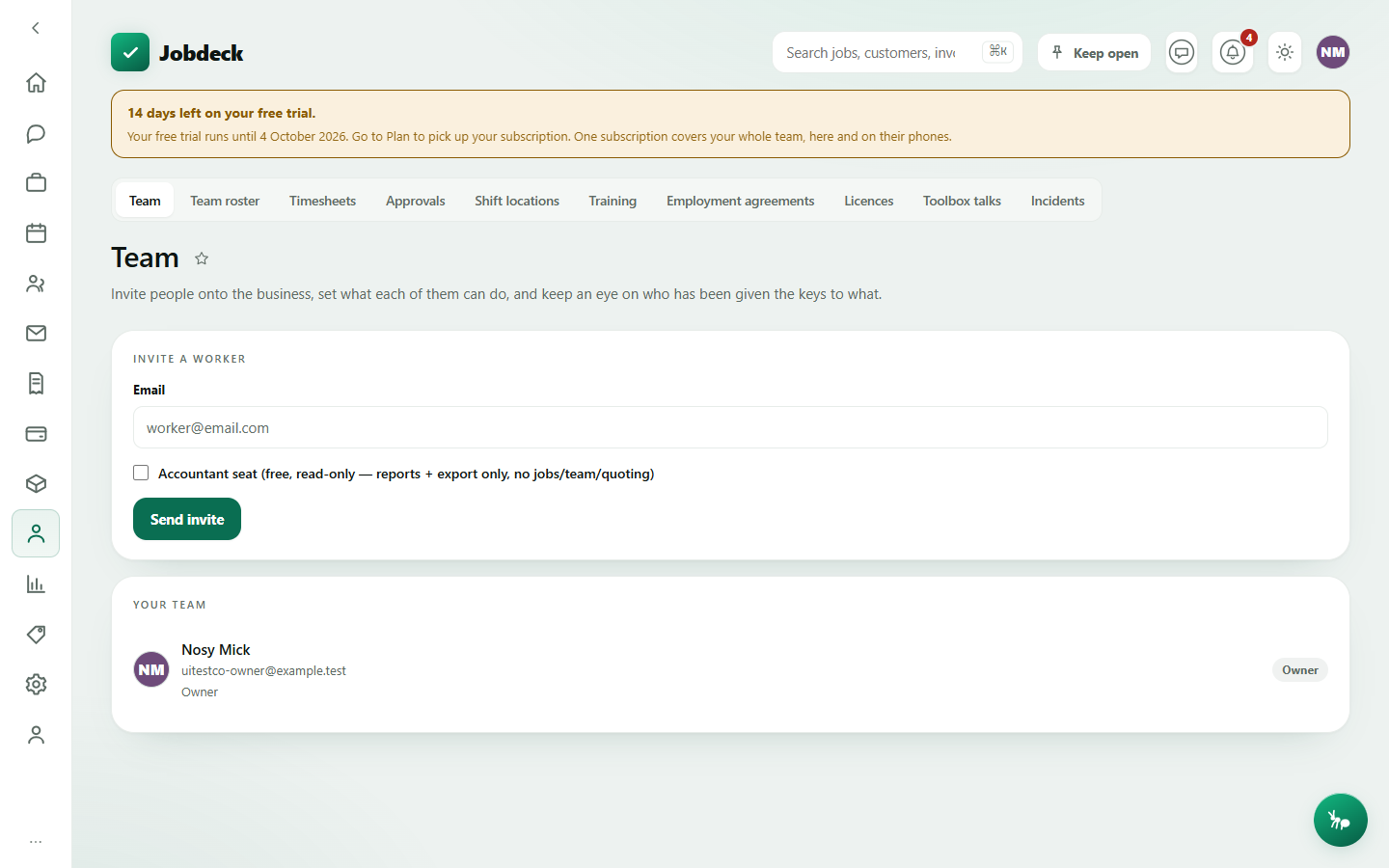
Team /crew
- What it's for
- Invite workers, see who's on the team, and — for an owner — set exactly what each person can do and see. A delegated manager can invite and remove people but only the owner can hand out permissions.
- Controls
- If you're not a manager you see a read-only team directory instead — names, phone numbers and a status line, with nothing to edit.
- Buttons
- Send invite (with an optional accountant seat) outbound, Copy code; Resend / Revoke on a pending invite; Remove to deactivate someone; opening a row reveals Start from a tier (or one of your own custom roles), a full permissions grid, the "what they can see" area switches, and — for an admin — Transfer ownership….
- On the page
- An invite form; pending invites; the team list, each row showing a face and tenure and their crew card — what they're up to and a tap-to-call number, when they've given one. Opening a row also shows their employment record (start date, availability, emergency contact), their cost rate per hour, whether they count as field or office labour, and their knock-off time.
- Takes you to
- Nothing else — this is a sit-down screen.
The free accountant seat. Tick accountant seat when you invite your bookkeeper or accountant. It's free and never counts towards your band, and you can have two of them. The seat is read-only: they see reports and the full data export, and nothing else. That's exactly why it's free — give one of them wider access later and they become an ordinary user, counting towards your band like anyone else. Invite a third and Jobdeck tells you at the moment you send it, rather than letting them find out when they try to join.
The nine tabs below sit behind the Team screen rather than in the old sidebar. Licences, Toolbox talks and Incidents moved here from Setup because they're registers about people, not business configuration; Employment agreements moved here for the same reason.
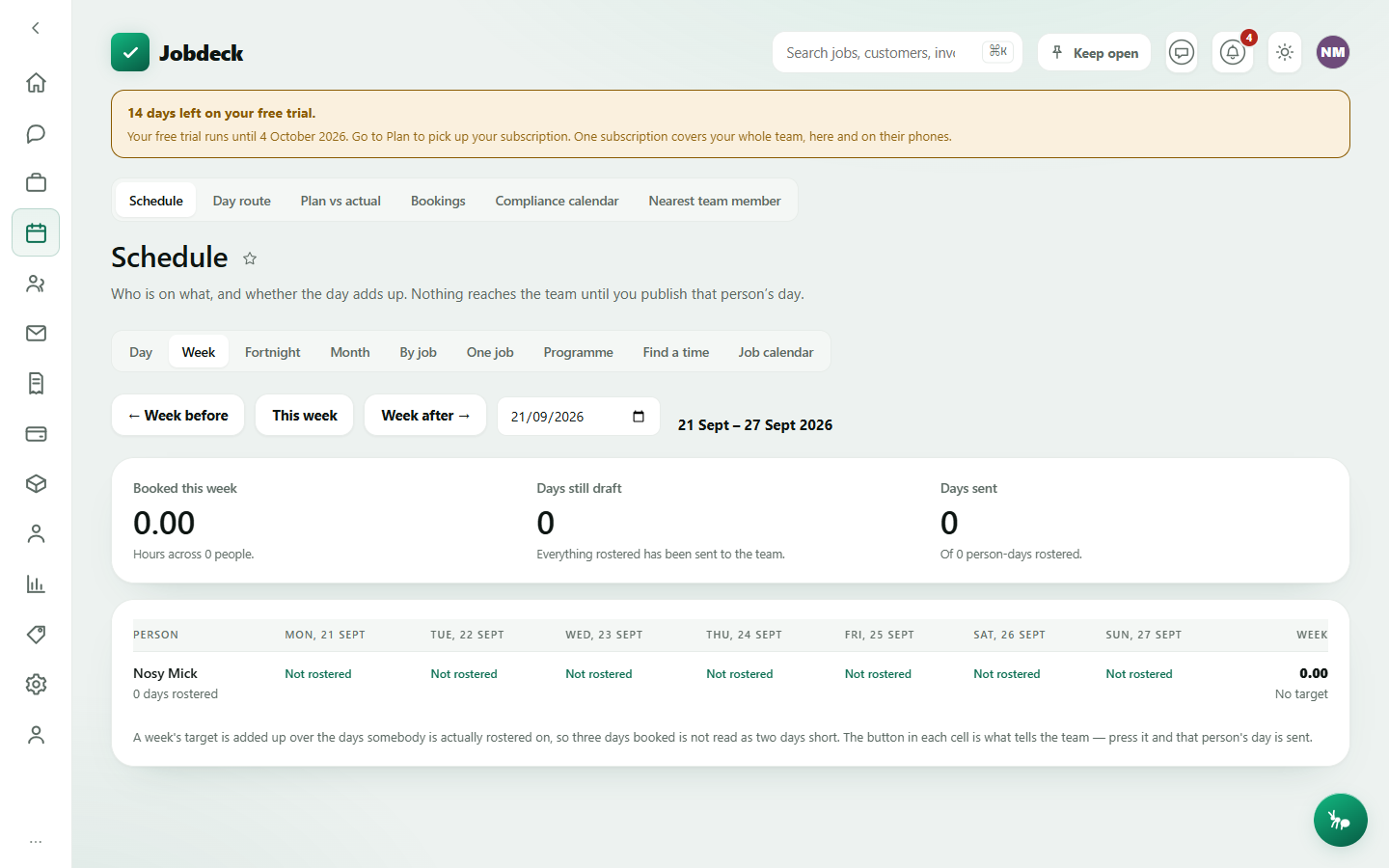
Team roster /roster
- What it's for
- Who's booked on what, by week. This tab doesn't have a board of its own — it opens straight into the Schedule's week view, which already answers "who's booked on what" with per-person weekly totals and a publish step. A second board over the same data would be a second way to disagree with itself.
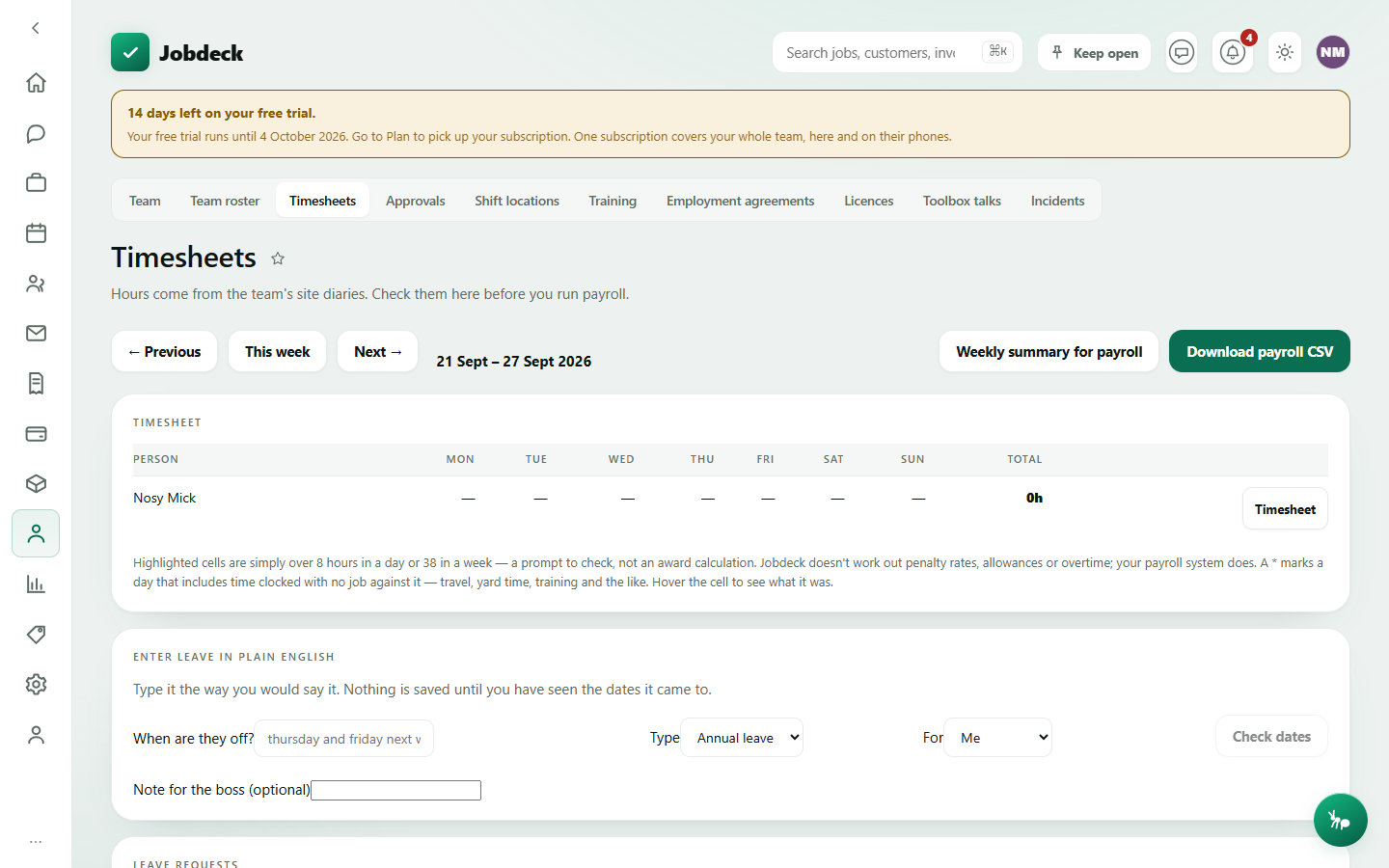
Timesheets /hours manager
- What it's for
- Hours come from the crew's site diaries — there's no separate clock-in step. Check the week, then run payroll off it.
- Controls
- Week navigation (Previous / This week / Next).
- Buttons
- Download payroll CSV; Print a person's timesheet; Approve / Decline on a leave request; Approve / Decline and Mark paid on a reimbursement claim.
- On the page
- A weekly hours table (over-hours flagged), leave requests waiting on you, and reimbursement claims waiting on you.
Approvals /approvals manager
- What it's for
- One inbox for everything waiting on you: leave, reimbursements, purchase orders and invoice approvals. Only the queues your own permissions cover show up — the server decides, not this screen. Timesheets aren't a queue here: crew-entered hours go straight to payroll with no sign-off step, so that stays on the Timesheets tab.
- Buttons
- Per item: Open, then a queue-specific pair — Approve/Decline for leave and reimbursements, Mark received/Cancel for a purchase order, Approve/Open invoice for an invoice.
- On the page
- A count tile per queue, then each queue's oldest-first list showing how long an item has been waiting — flagged once it passes a week.
Shift locations /shift-gps manager
- What it's for
- Where somebody was during a shift they chose to share their location for — only while clocked on, only while the position was still current. Gaps are shown as gaps, never joined into a route that didn't happen.
- Controls
- Pick a person and a day; optional "counts as a stop after" and "same place within" thresholds (the defaults suit a house in a street, not a substation yard).
- On the page
- A privacy statement explaining exactly what the report can and can't show, on-the-clock vs covered-by-a-position minutes, and the day broken into shift sections with stops.
Training /training
- What it's for
- How this business does things, plus guides that ship with Jobdeck. Anyone can read an article; marking one read is your own personal record of it.
- Controls
- Category filter; a manager can also show retired articles.
- Buttons
- A manager gets Write an article → Save article, and can edit or retire an existing one. Everyone gets a mark-as-read action per article.
- On the page
- Your own progress; articles grouped by category; for a manager, a "who has read what" panel.
Employment agreements /employment-agreements manager
- What it's for
- Write an agreement once, save it as a template, and send a signable copy to anyone on the team — they sign electronically from an emailed link, no printing or scanning. Not the same thing as a customer maintenance agreement, which is a different record that happens to share the English word "contract".
- Buttons
- Templates: Save template, per-template Delete. Agreements: Save as draft, then send outbound; per-agreement status pill.
- On the page
- A template editor with starter templates for common employment types; the agreement list per person with its sign status.
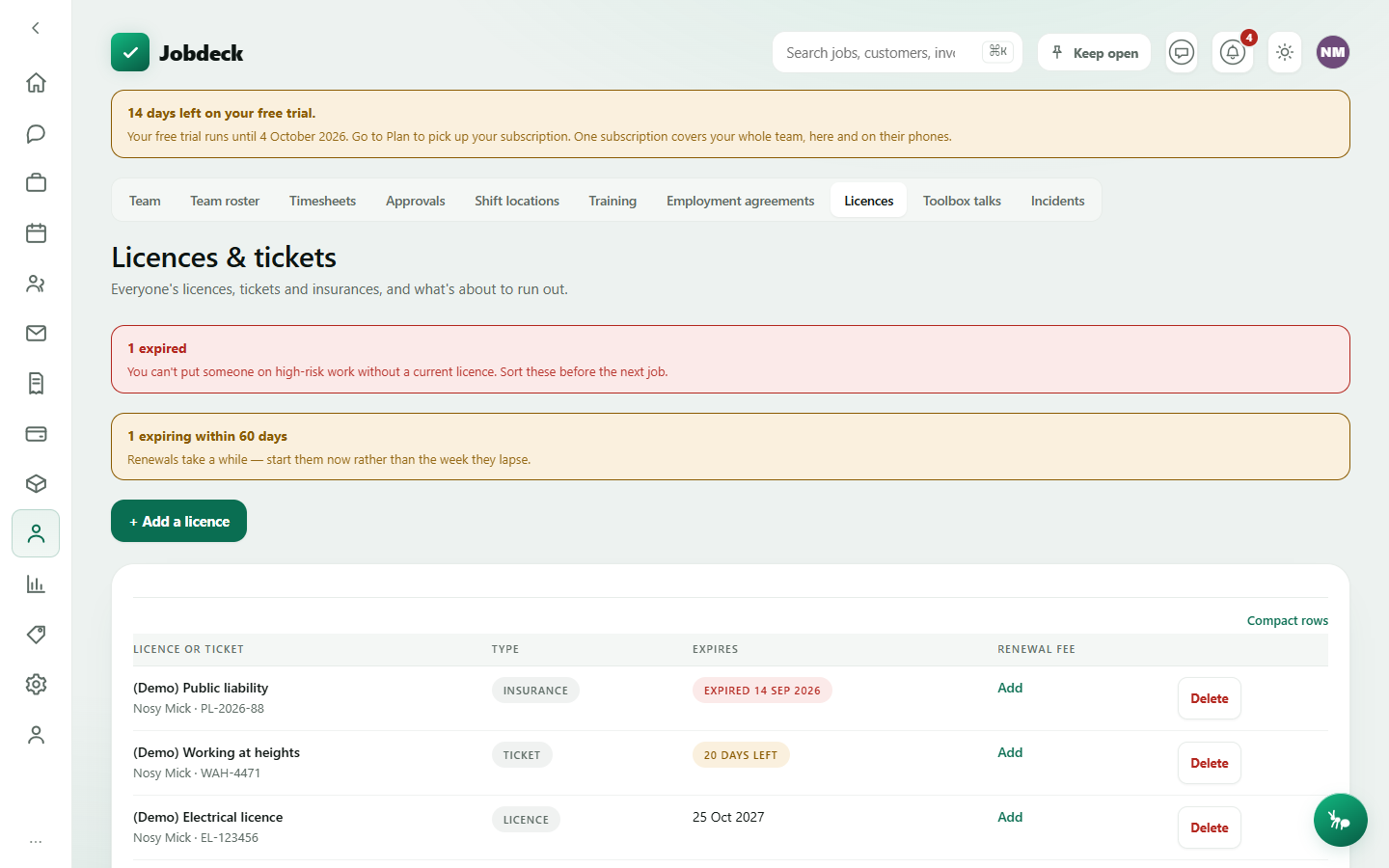
Licences /credentials
- What it's for
- Every crew member's and subbie's licences, tickets and insurances in one place, so nothing lapses before a job. NSW alone has 29 high-risk-work licence classes, and a PCBU must not put someone onto that work without a current one.
- Controls
- Type filter (Licence / Ticket / Insurance / Other).
- Buttons
- Add a licence → Save; per-row Delete; a renewal fee can be added against a credential, which feeds the overheads register on Reports.
- On the page
- Banners for anything expired or expiring within 60 days, and a table sorted soonest-to-expire first.
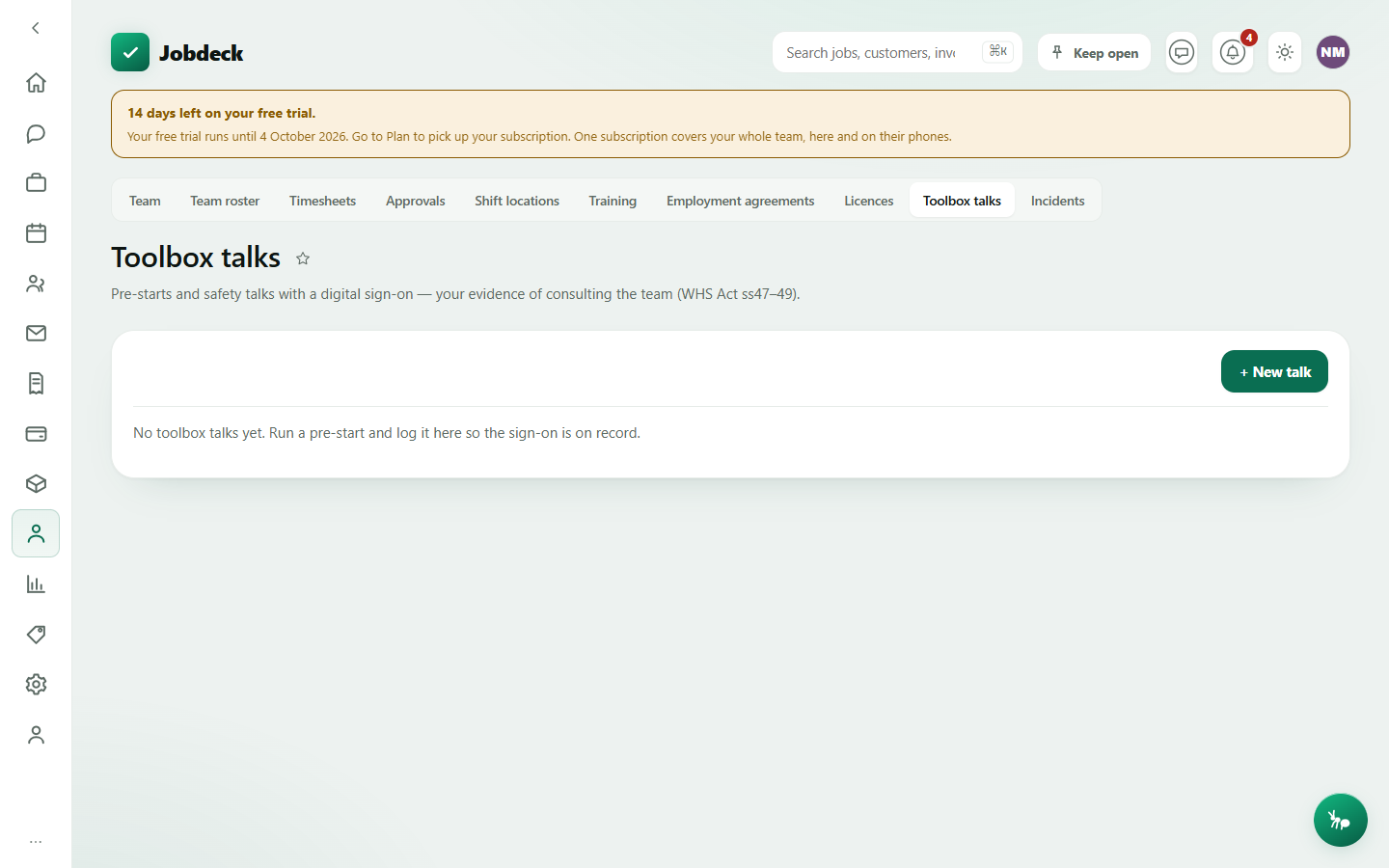
Toolbox talks /toolbox-talks
- What it's for
- Log pre-start and safety talks with a digital sign-on from each worker — your evidence of the WHS consultation duty (Act ss47–49).
- Buttons
- + New talk → Save talk; Sign myself on; type a name and Add to sign on a subbie.
- On the page
- Talk rows with a sign-on count; opening one expands its sign-on register.
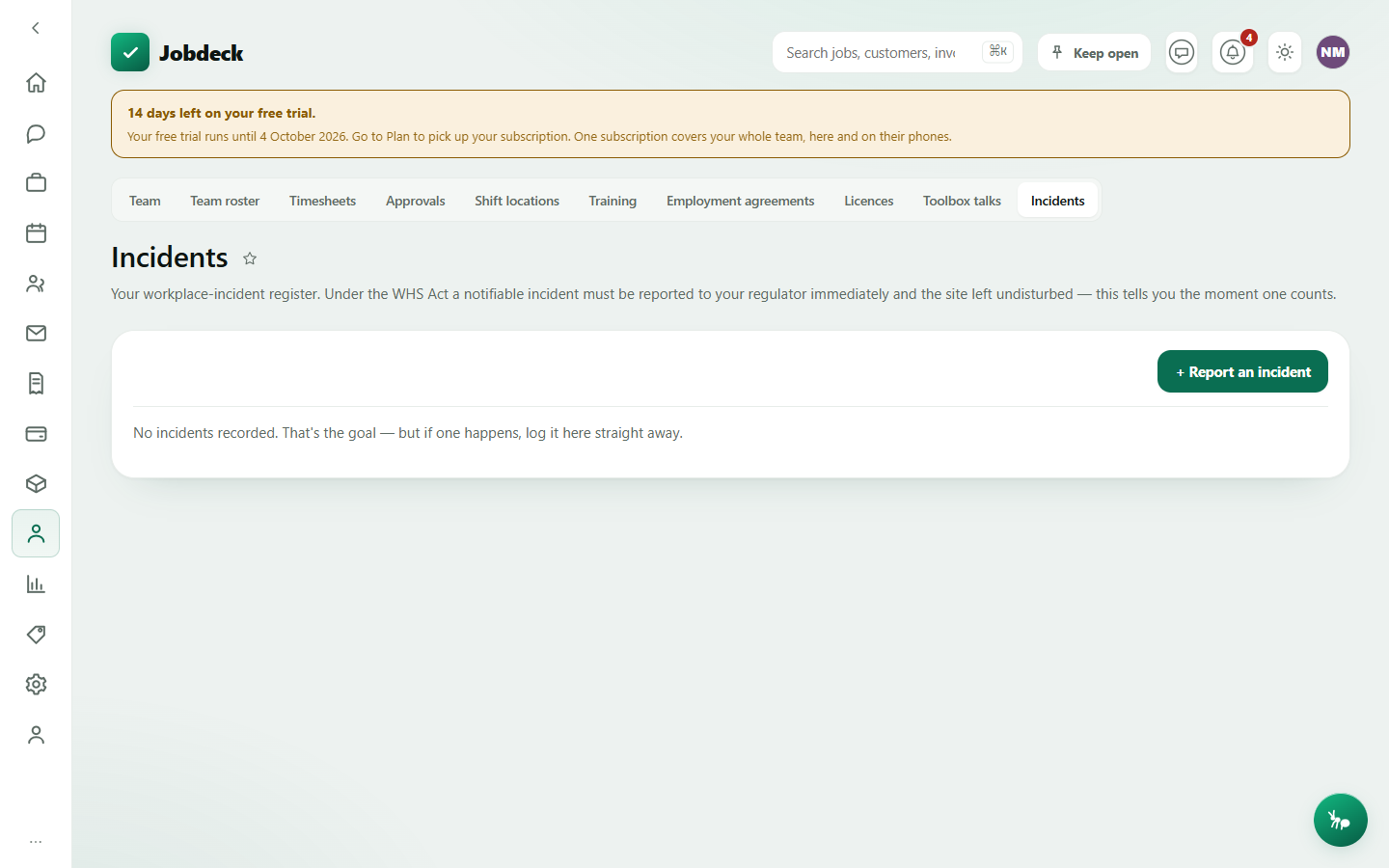
Incidents /incidents
- What it's for
- Your workplace-incident register, which tells you the moment an incident becomes notifiable so you know to ring the regulator immediately and leave the site undisturbed (WHS Act 2011 ss35–39).
- Buttons
- + Report an incident → Save to register; Mark notified once you've rung the regulator.
- On the page
- A form with tick-box categories and a live "this is a notifiable incident" banner while you're filling it in, and the register itself with Notifiable / Regulator notified pills.