Guide / Sales
HelpCustomer detail
One customer's whole history, plus every setting that governs how you deal with them from here on — credit, pricing, contacts, contracts, and how their documents reach them.
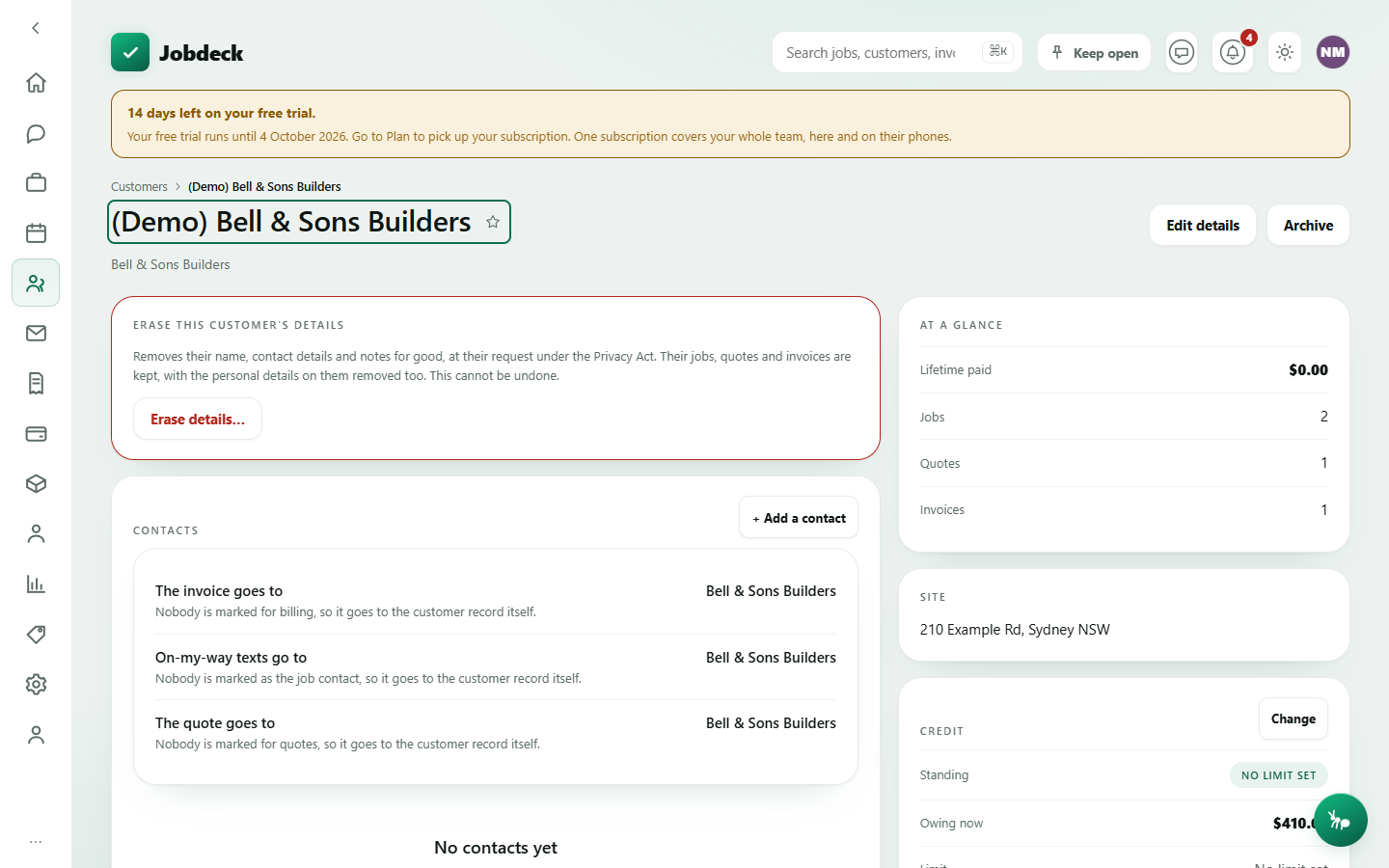
Customer detail /customers/:id
- What it's for
- Everything about one customer in one place — their jobs, quotes and invoices, and the settings that decide how future work with them is priced, billed and delivered.
- Buttons
- Edit details → Save; Archive / Bring back (manager only, with a typed reason); Erase details… (owner only — permanently removes their name, contact details and notes under the Privacy Act; their jobs, quotes and invoices are kept with the personal details stripped off them too; type the customer's name to confirm; cannot be undone).
- On the page
- A banner if they're archived, erased, or on stop (the stop is shown to everybody — it carries no figure and is exactly what somebody about to book work needs to see); Jobs, Quotes and Invoices history lists; an "At a glance" card (lifetime paid, job/quote/invoice counts) and the customer's Site if one's recorded on the record itself.
- Takes you to
- Any job, quote or invoice on the record; back to Customers.
Everything below is a card down the right-hand rail of the same page, in the order it appears.
Contacts
- What it's for
- The people at this customer, and — the half that earns the card — who a document would actually go to. On commercial work the person who books the job and the person who pays the invoice are rarely the same, and sending an invoice to the site foreman is how it sits unpaid for sixty days.
- Buttons
- + Add a contact → Add contact; per contact a role picker (Job contact / Billing / On site / Property manager / Other) and Remove.
- On the page
- A routing card at the top stating, in words, where the invoice, on-my-way texts and the quote each go and why; a "Main contact" flag whose name, phone and email mirror onto the customer record itself.
Credit
- What it's for
- A credit limit and an on-stop switch for this customer, so a bad debt doesn't quietly double.
- Buttons
- Change → set a limit in dollars (empty means no limit; a zero means prepayment only), tick On stop, type why → Save.
- On the page
- Standing, owing now, limit, and what's left to spend — every one of these prints the reason in words rather than a bare $0.00 when nothing has been set.
Needs money access to see or change.
Terms and tax
- What it's for
- Override the business's payment terms or tax rate for just this customer — a builder on 30 days when everyone else is on 14, say.
- Buttons
- Change → payment terms in days, tax rate as a percentage (either box left empty follows the business default; a zero payment term means due on receipt, a zero tax rate means the supply is GST-free) → Save.
- On the page
- Which figure is in force right now, and whether it's this customer's own setting or the business default.
Needs money access.
Billing address
- What it's for
- Send invoices and statements somewhere other than the customer's main address — a head office, a PO box.
- Buttons
- Change → type an address, or leave it empty to fall back to the main address → Save.
- On the page
- What invoices actually go out with right now, and why.
Response time
- What it's for
- The response time promised to this customer — a four-hour callout, say — when it's meant to beat the business default.
- Buttons
- A picker of the response-time levels you've set up (manage settings only) → chosen immediately, no separate save.
- On the page
- What new jobs are promised right now, and which of three levels answered it (the job's own, then the customer's, then the business default). Applies to jobs created from now on — a job already on the board keeps the target it was created with, so a report already sent can't move under the customer.
Price level
- What it's for
- Which pricing band this customer is quoted at — Retail, Trade, Builder — instead of the business default.
- Buttons
- Pick a band to preview → Put [the customer] on [that band] or Back to the business default.
- On the page
- A preview of the catalogue priced on the picked band BEFORE you assign it, including the resolved hourly labour rate and a warning for any lines that would come out with no price at all — so nobody finds out a third of the catalogue is unpriced on the quote itself.
Needs money access.
Custom fields & Tags
- What it's for
- Extra fields you've defined for customers (an account number from your old system, say), and free-text tags for grouping and filtering.
- Buttons
- Fill in a value per field (manager to add a new field type); add or remove a tag.
Sites (on this customer)
- What it's for
- Extra addresses filed straight under this customer — a strata or property manager with several buildings adds each one here.
- Buttons
- + Add a site → label and address → Add site; remove (×) per row.
The same addresses the standalone Sites screen lists with zones and reminders — this card is the quick label-and-address version on the customer record itself.
How their documents go out
- What it's for
- Which channel — email, SMS, a customer-portal link — each document type reaches this customer through, when it should differ from the business default.
- Buttons
- A method picker per document type (manage settings only) → saved immediately; Change the business default, which moves every customer with no setting of their own and says how many that is before you confirm.
- On the page
- The effective method per document type, and whether it's this customer's own choice or the business default.
Contracts (on this customer)
- What it's for
- Maintenance agreements for this customer specifically — the same ones the Customer contracts screen warns you about as they run out.
- Buttons
- + Add a contract → name, start, end (blank for open-ended), value, auto-renew → Save contract; Turn on/off auto-renew, Delete.
- On the page
- Each contract's status pill and whether it renews itself, spelled out in words both ways round — a contract that quietly rolls over at last year's rate is the complaint this card exists to stop.
Anyone can read it; adding or editing needs money access.
Groups
- What it's for
- Which customer groups (Strata, Builder…) this one belongs to, for splitting reports later.
- Buttons
- Tap a chip to toggle membership — saved immediately. New groups are set up from the Customers screen.
People linked here
- What it's for
- The same shared contact book that links a person to several customers, sites, suppliers and subbies at once — change their number in one place and it changes everywhere they're linked.
- Buttons
- Search the contact book → Link here; Unlink (removes the link only — the person stays in the book).
Statement
- What it's for
- Everything this customer currently owes, and a document you can hand them.
- Buttons
- Download statement (PDF).
- On the page
- Total outstanding, then every open invoice with its dunning stage (reminder / overdue / final) and days overdue.
Shown to a manager, or a member holding the invoicing permission.
Duplicate?
- What it's for
- Merge another customer record into this one when the same customer was entered twice.
- Buttons
- Merge a duplicate in… → pick the record to merge in → Merge into this customer (archives the losing record and moves its jobs, quotes, invoices, sites, contacts, notes, tags, reminders, prepaid hours, memberships and messages onto this one). If both records have real activity, Jobdeck refuses by default and asks you to confirm Merge anyway.
- On the page
- A preview of exactly what moves and what this record keeps, before you confirm.
Manager only. The losing record is archived, never deleted, so a wrong merge can be traced.
Customer portal
- What it's for
- A private, durable link the customer can keep, showing every job, quote and invoice they've had with you.
- Buttons
- Get portal link; Copy link; Regenerate link (the old link stops working immediately).
Manager only.
Correspondence log
- What it's for
- An append-only, attributed history of dealings with this customer — a call, an email, a note — shared by the whole office.
- Buttons
- Type a note → Add note.